Install guide
Kindle Scribe (2022–2024)
How to install Margin’s PDF templates to your device.
The device
- Screen
- 10.2″ monochrome
- Resolution
- 1860×2480, 300 ppi
- Price
- Older model
- Template file
- 10.3″ 3:4, the same file as 15 other devices, including the reMarkable Paper Pure, reMarkable 2 and Boox Note Air6 C
Install a template
- On the template’s page, choose Kindle Scribe (2022–2024) in the device menu and download the PDF. Templates you’ve bought are also in your library.
- Send the PDF with Send to Kindle: upload it at amazon.com/sendtokindle (up to 200 MB, with “Add to your library” turned on), share it from the Kindle app on iPhone or Android, email it to your Kindle’s Send-to-Kindle address, or use the Send to Kindle app for Mac or Windows.
- Open it from your library and write on the pages with the pen. Amazon’s help says writing directly on a PDF’s pages works for PDFs sent with Send to Kindle, and not for PDFs copied over USB-C.
From Amazon: Learn About Sending Documents to Your Kindle Library; Amazon: Kindle Personal Document File Types That Support Notes. Checked October 6, 2026.
38 templates for the Kindle Scribe (2022–2024)
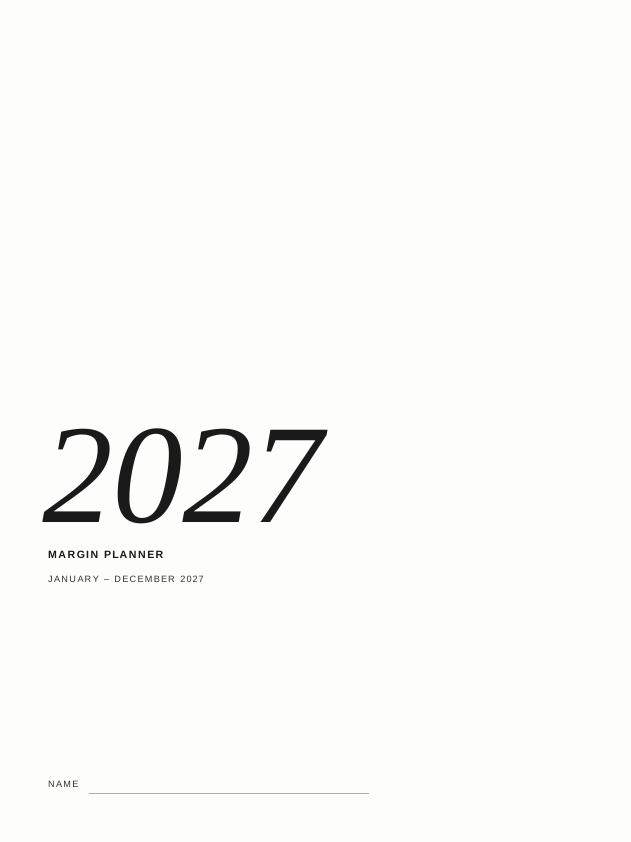
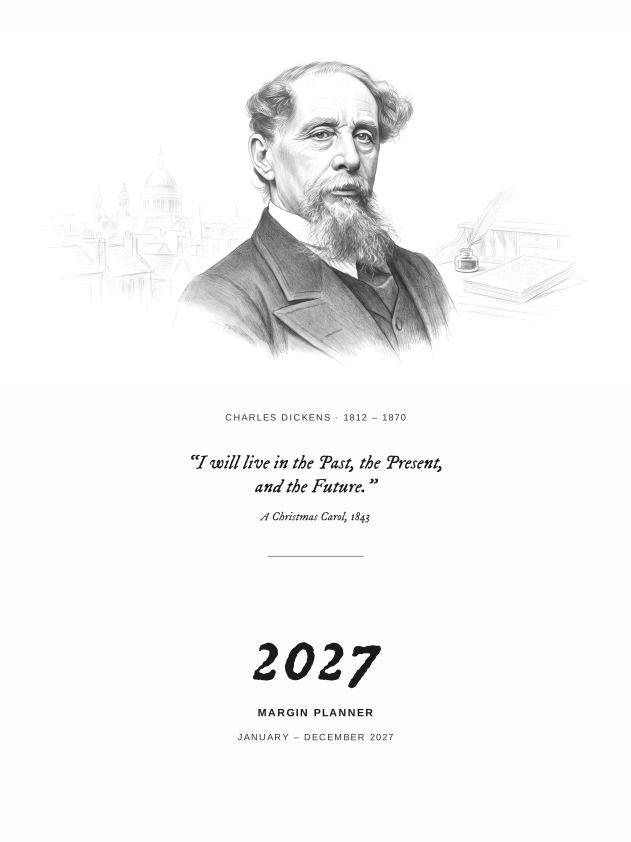
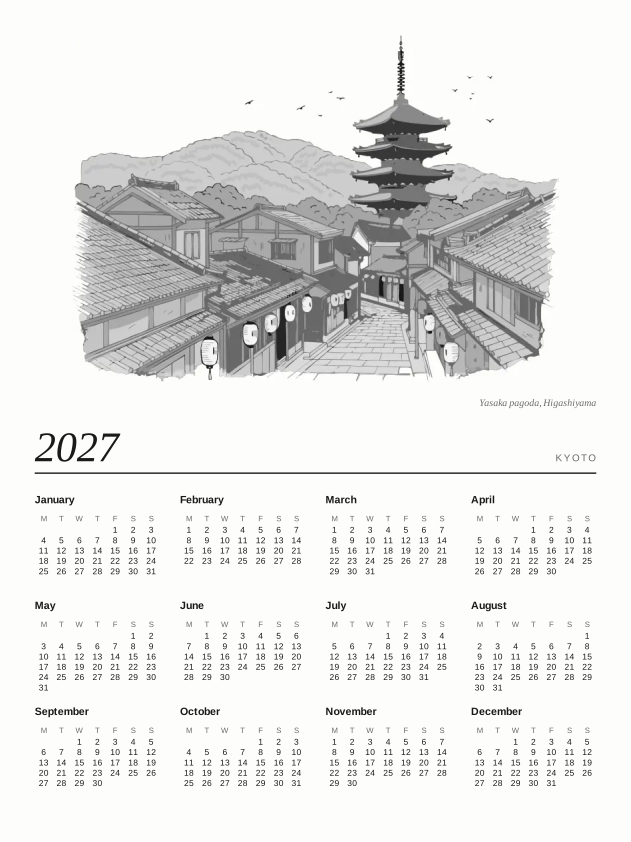
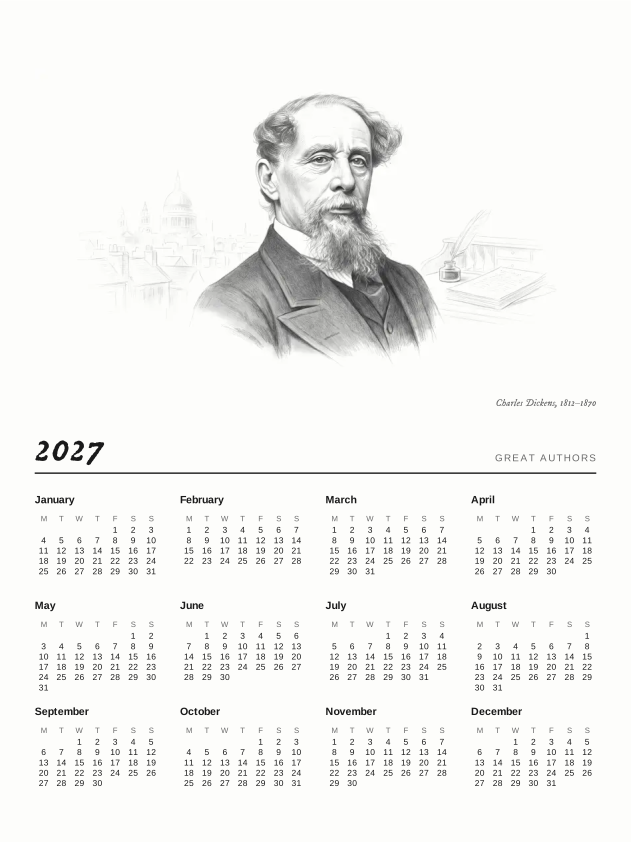



Kyoto Sleep Screens$6.99
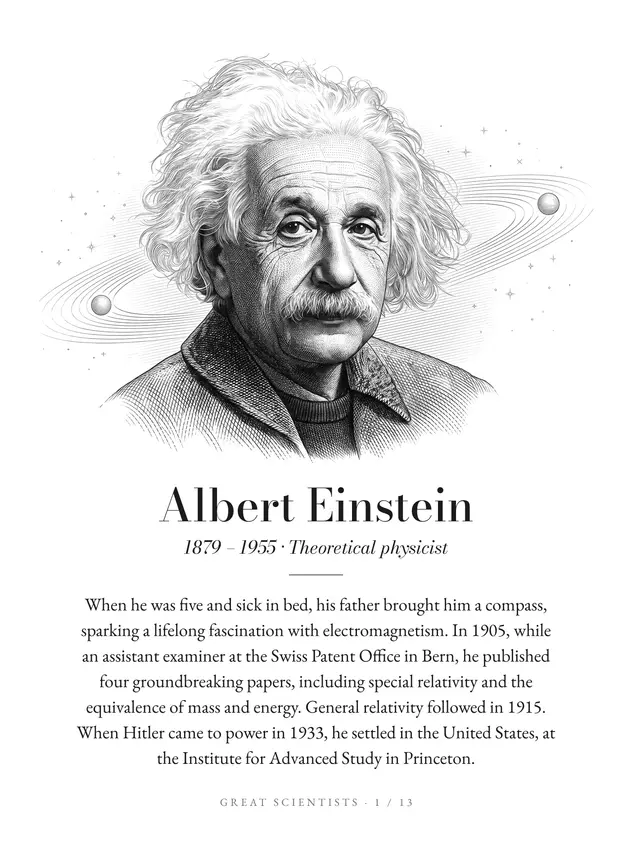
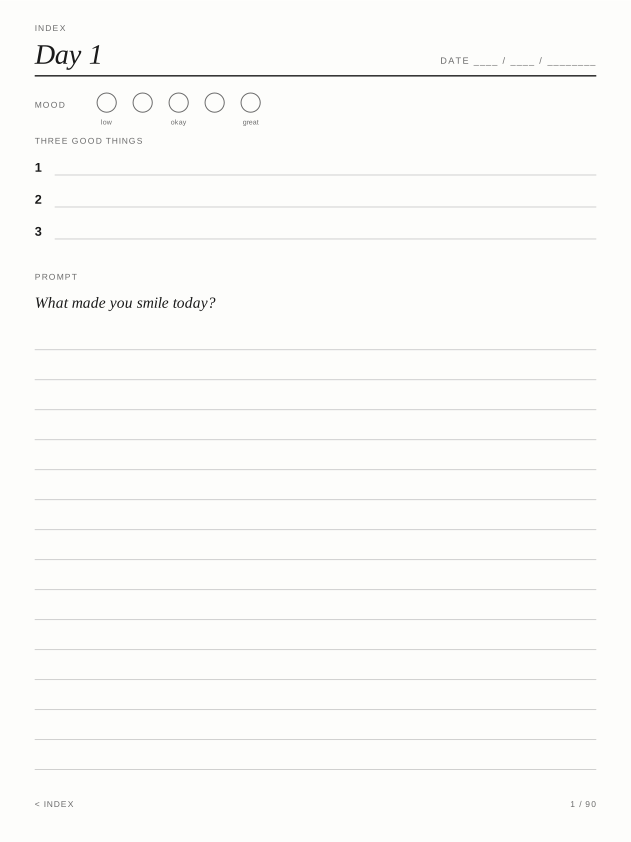
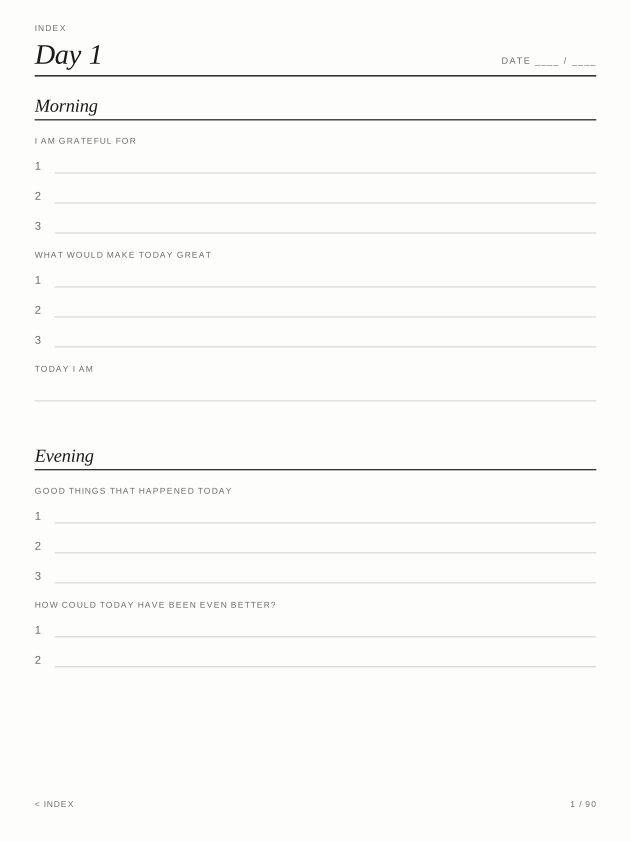
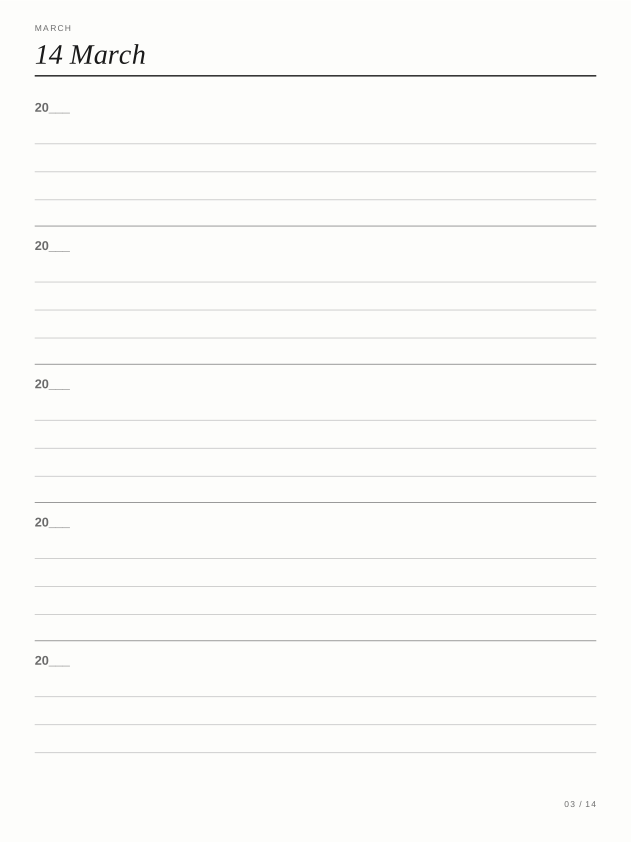
Five-Year Journal$3.99
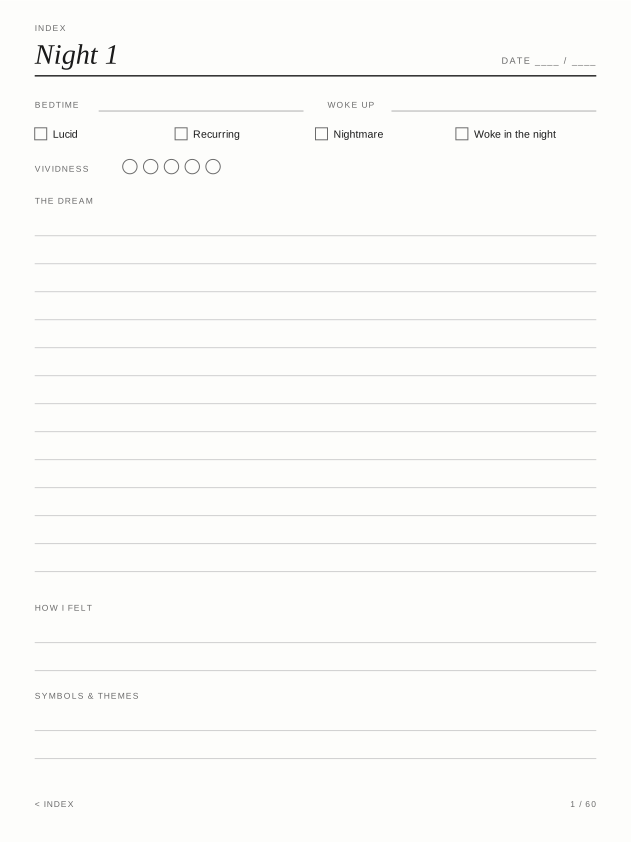
Dream Journal$2.99
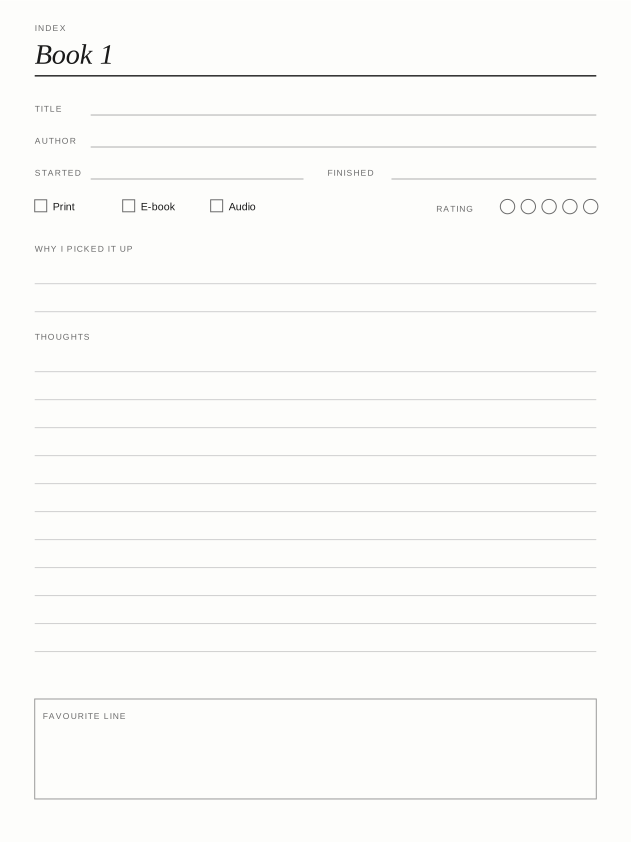
Reading Log$2.99
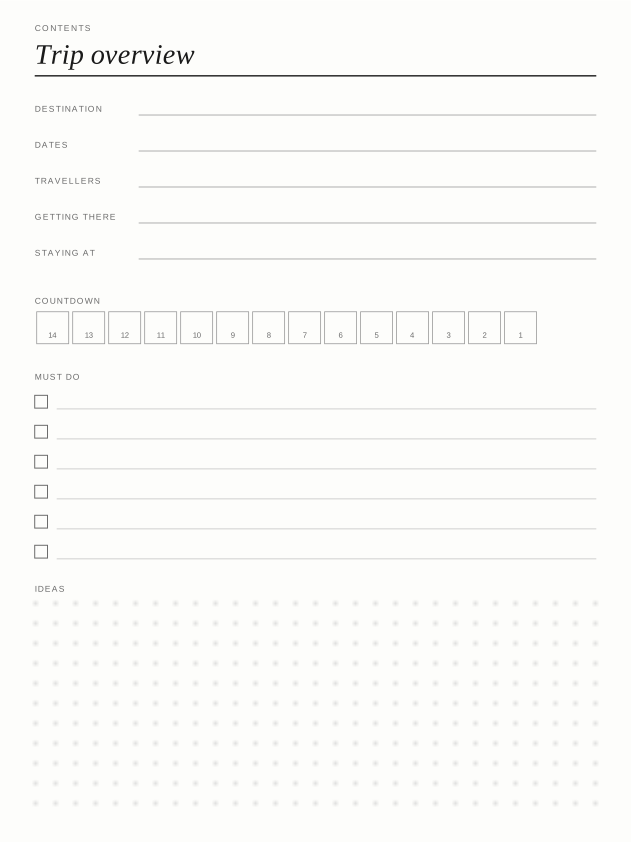
Trip Planner$2.99
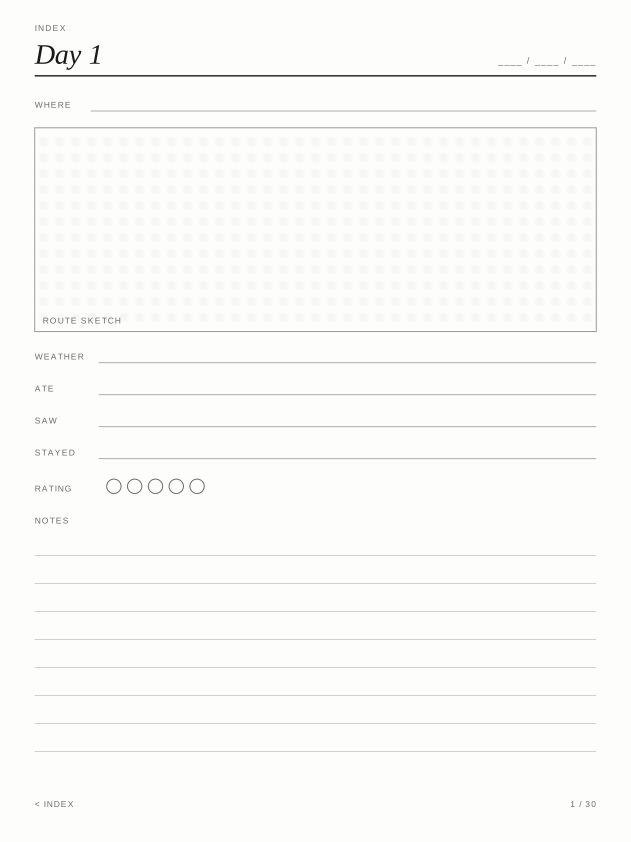
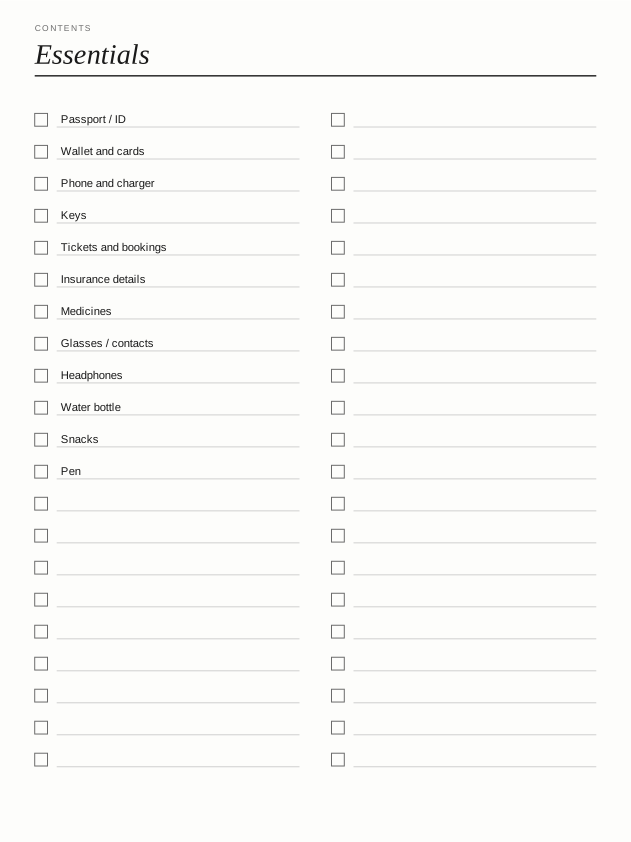
Packing Lists$2.99
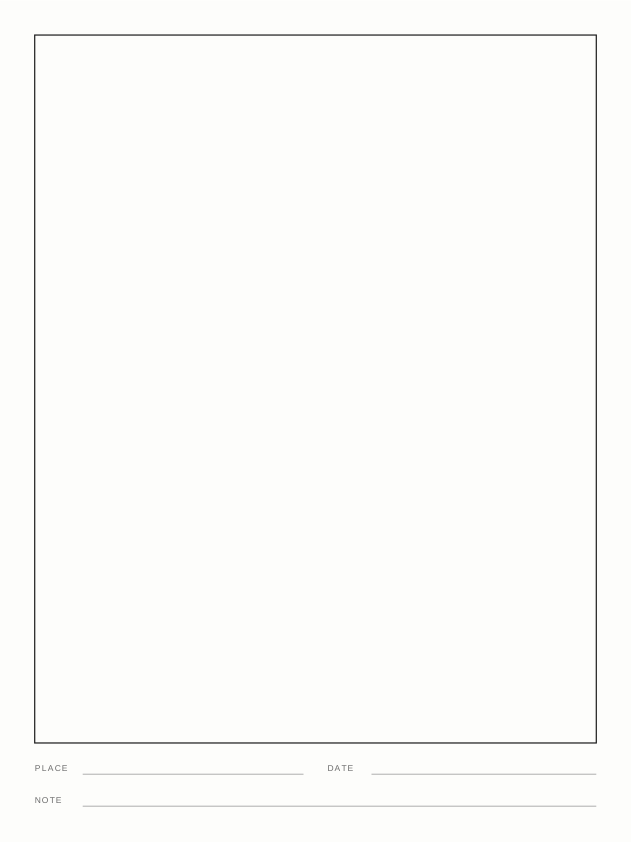
Travel Sketchbook$2.99
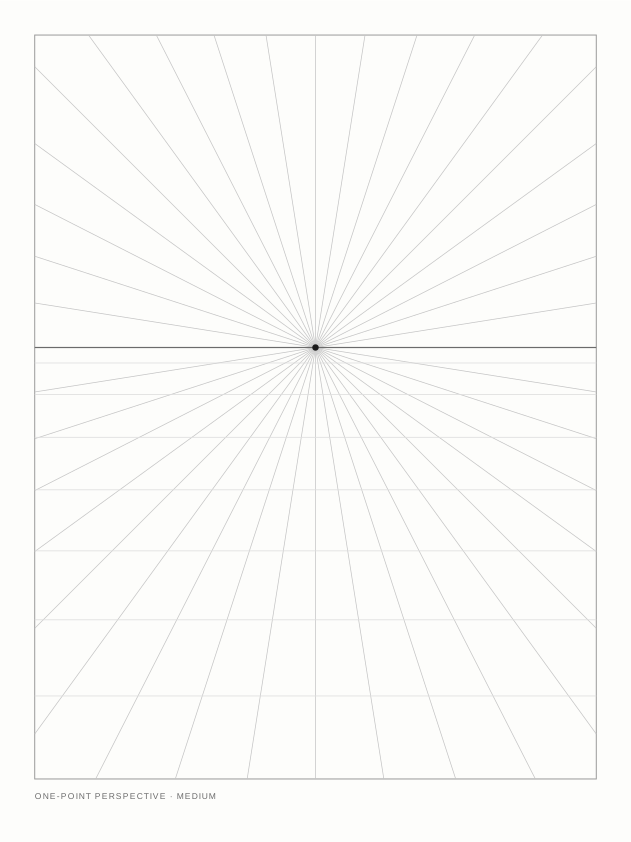
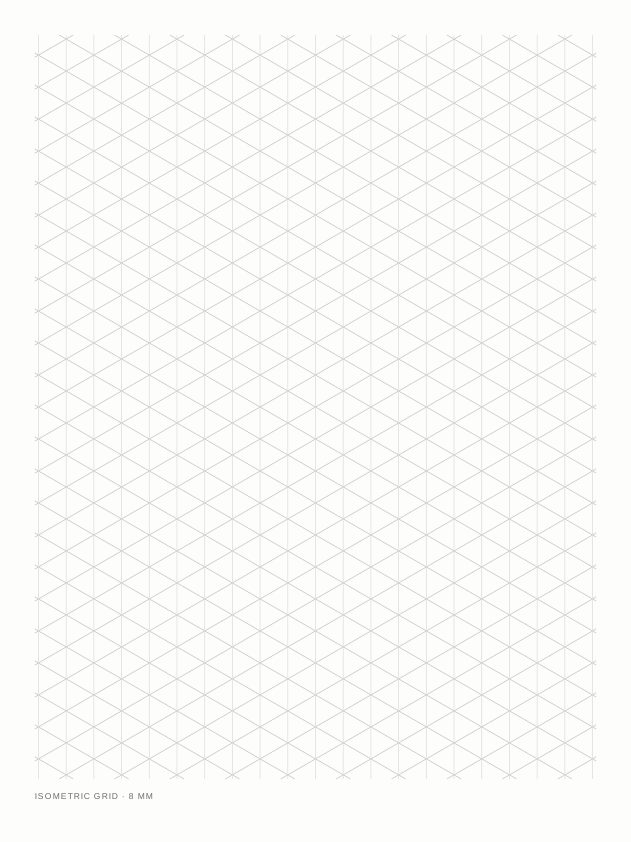
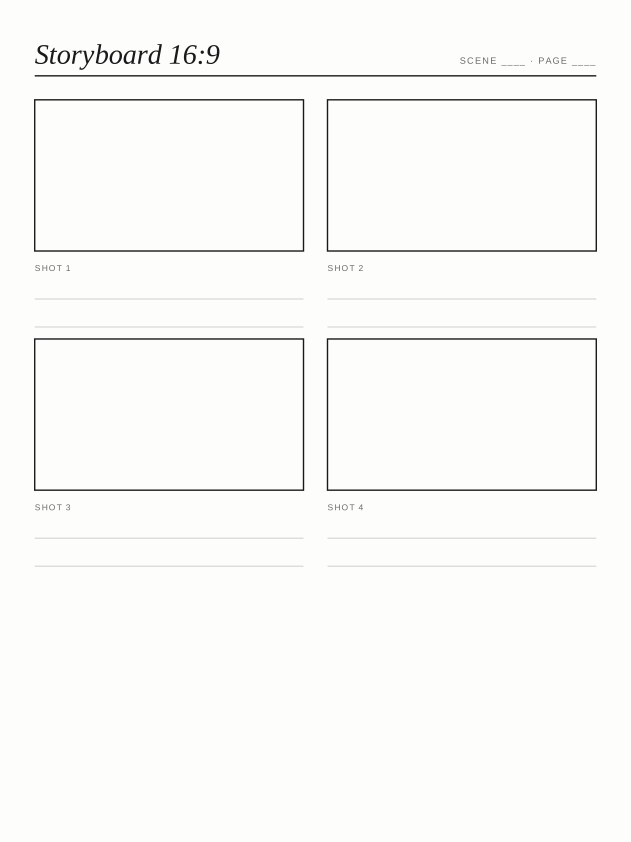
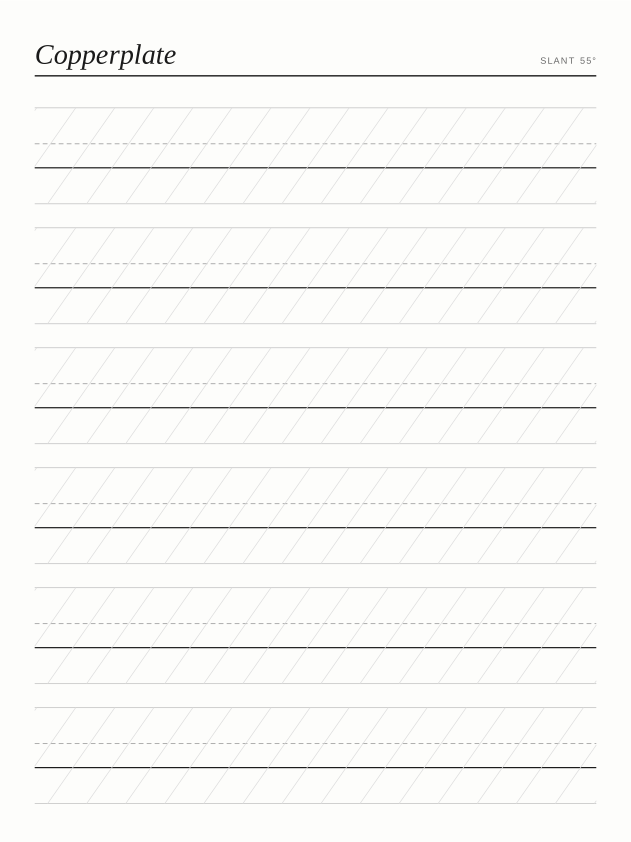
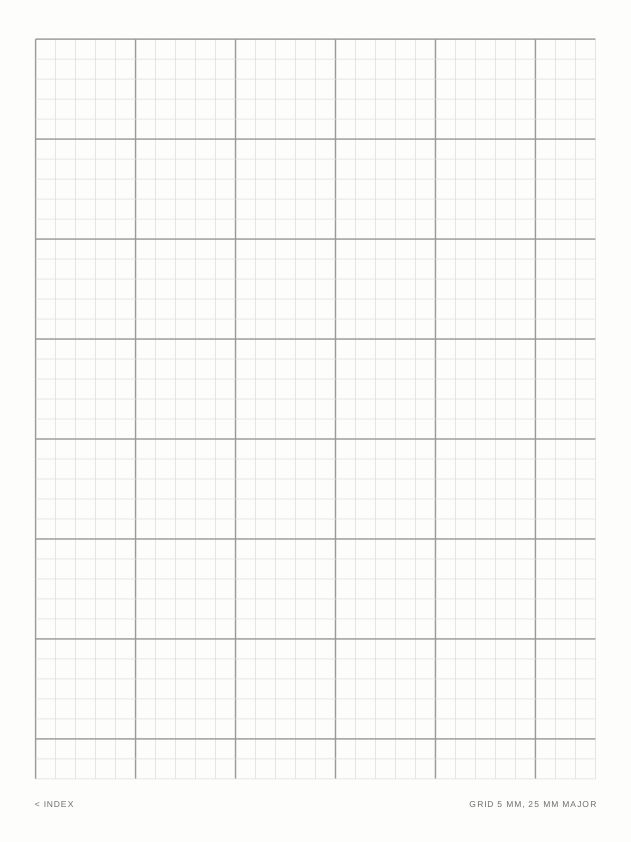
Paper Essentials$2.99
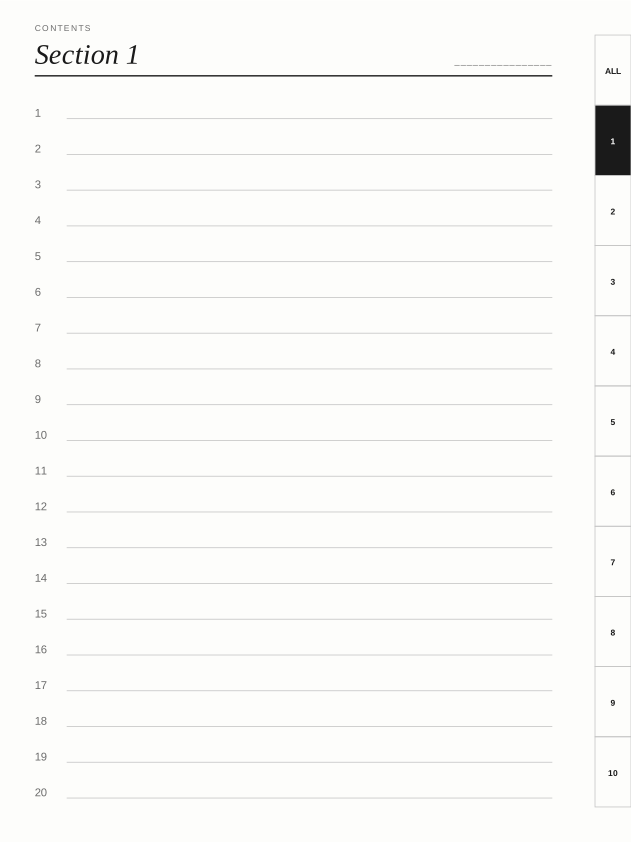
Linked Notebook$2.99
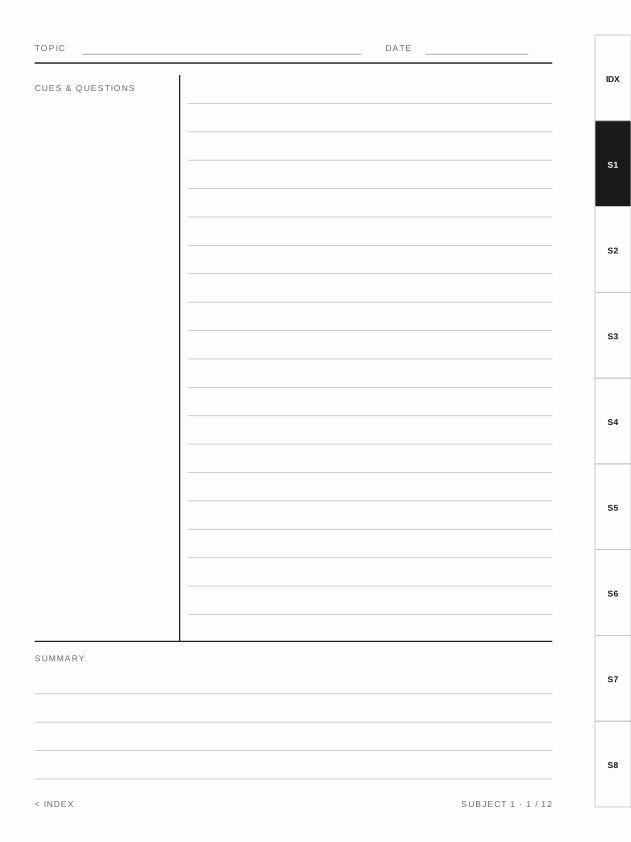
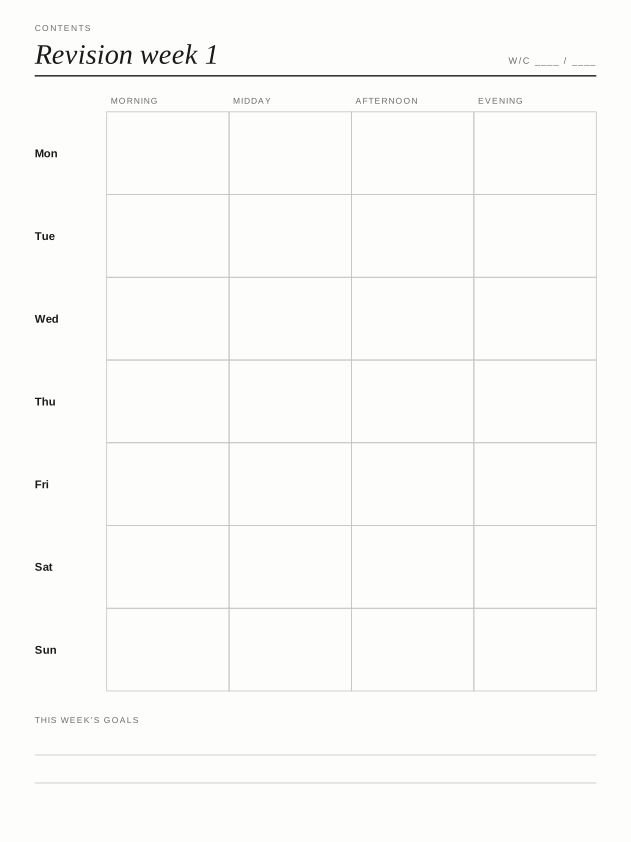
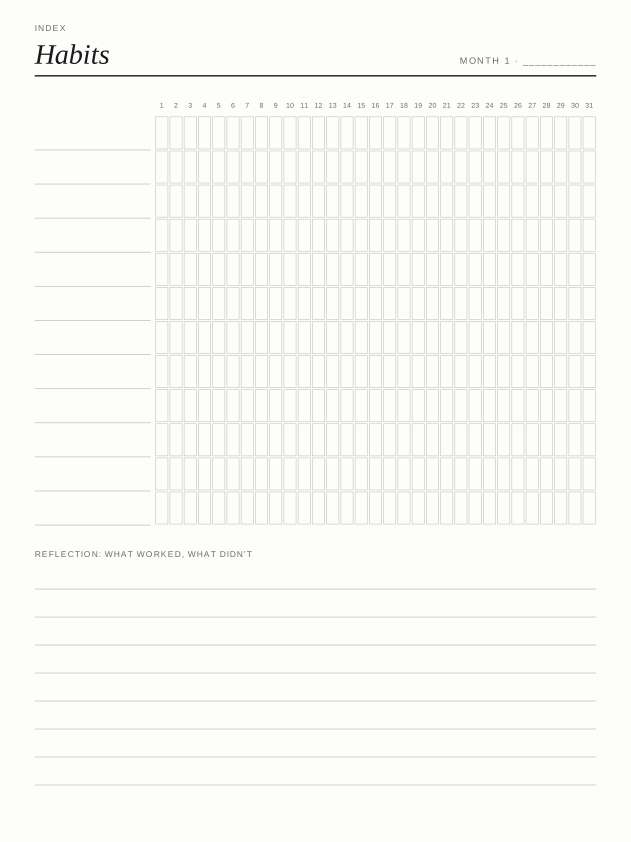
Habit Tracker$2.99
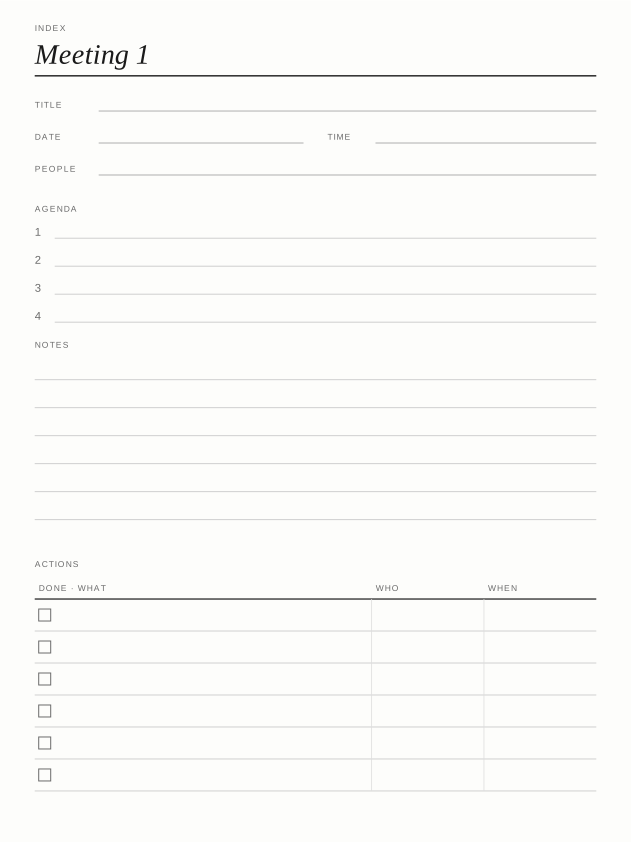
Meeting Notes$2.99
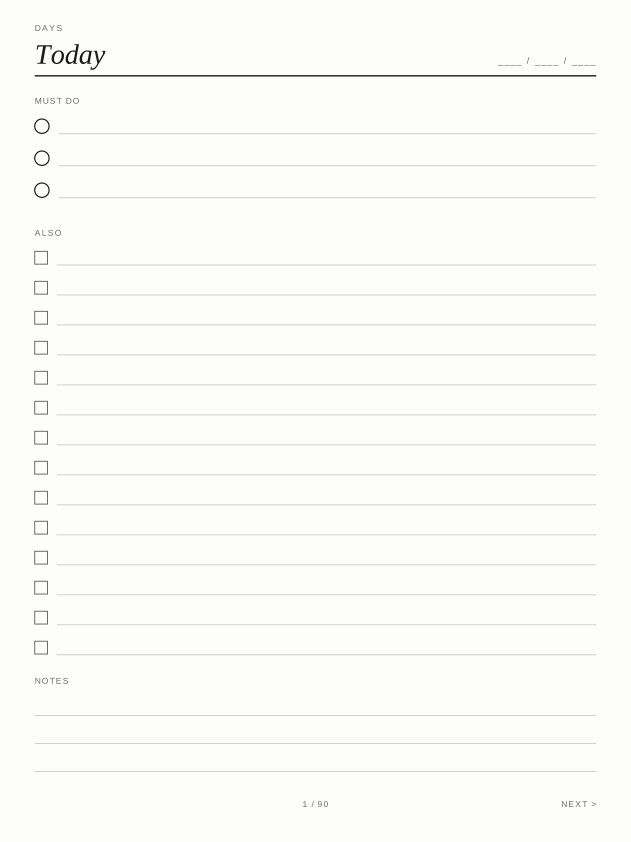
To-Do & Priorities$2.99
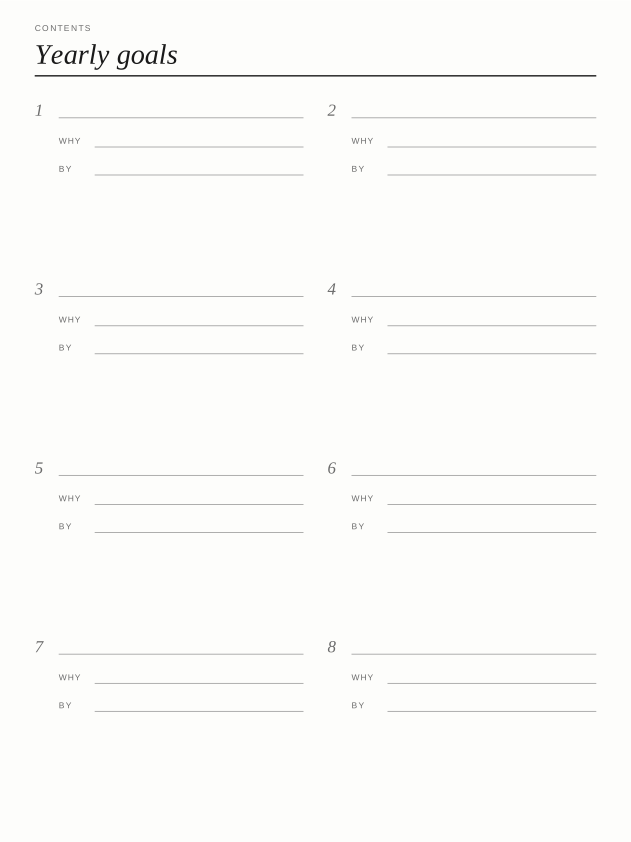
Goal Planner$2.99
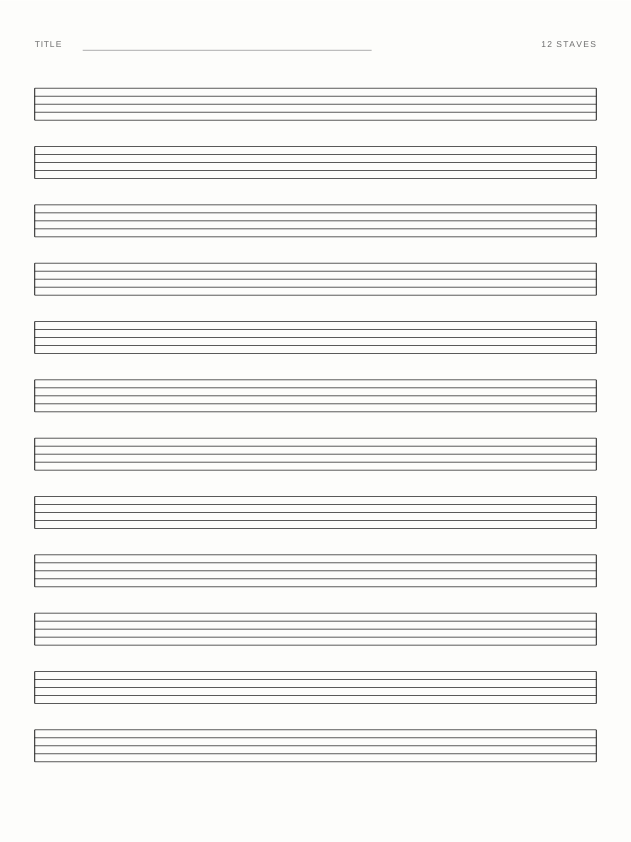
Staff Paper Set$2.99
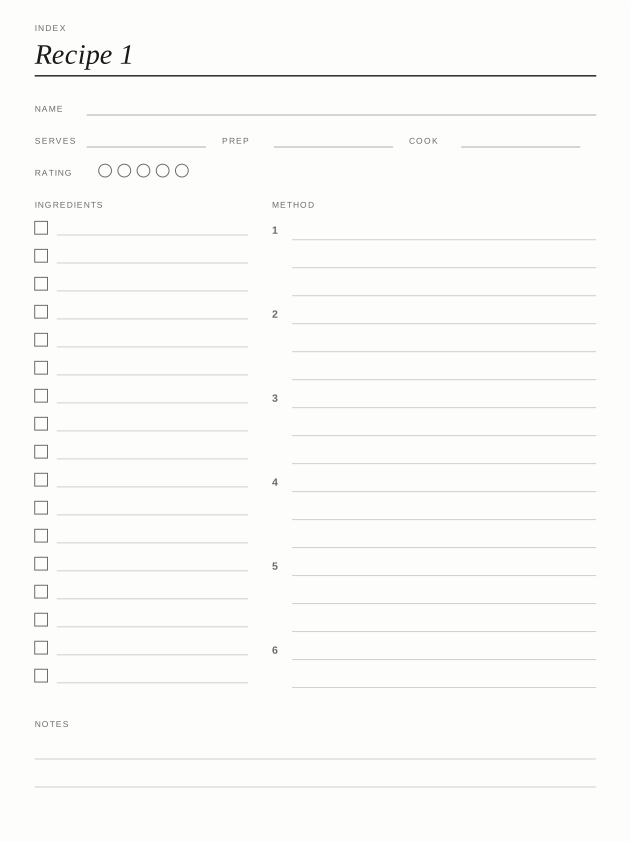
Recipe Book$2.99
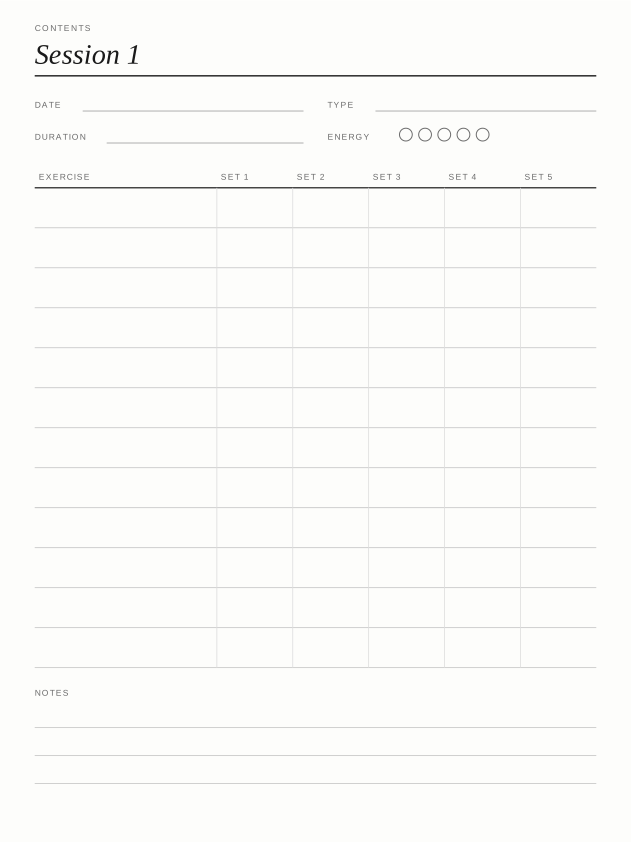
Workout Log$2.99