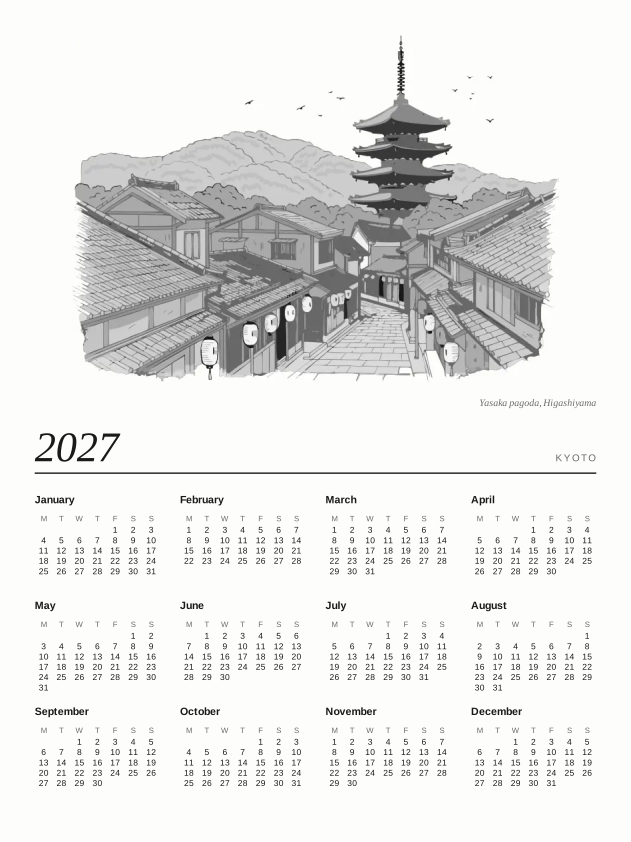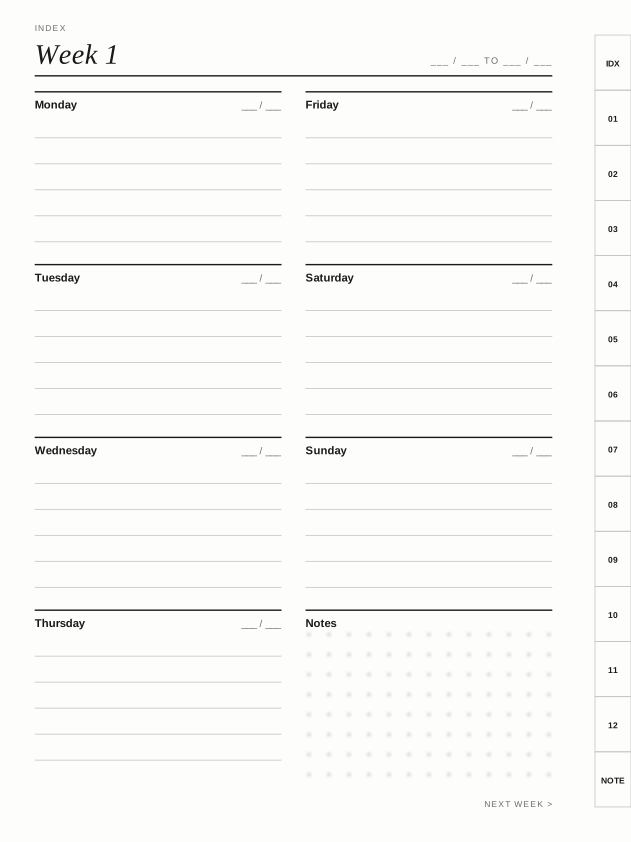
Shown at 10.3″. Each image is made at your screen’s exact size.
Kyoto Sleep Screens
13 sleep screens for your e-ink reader or tablet: a woodblock-style picture of Kyoto on each, with the place or festival named and a few lines of its history.
13 images · PNG (BMP for Xteink) · 11 screen sizes
- 13 illustrations of Kyoto, from the Yasaka Pagoda and Kinkaku-ji to the Gion Matsuri and the New Year bell at Chion-in
- Each place or festival named, with a short history checked against published sources
- Sized exactly for 21 Kobo, Boox, Supernote, Xteink and reMarkable models
- Titles in a quill-pen script, with 京都 (Kyoto) on every screen
- Drawn in 16 greys for e-ink
- PNG files (BMP for Xteink), with setup steps for each device
The same drawings fill the 2027 Kyoto Picture Calendar, a planner with a page for every day.
Multi-buy: 15% off two templates, 25% off 3 or more. Mix any templates; the saving is applied at checkout.
Buy it with the 2027 Kyoto Picture Calendar as The Kyoto Set and save 20% on both.
Kindle isn’t included: Kindles only show their own sleep screens unless they’re jailbroken.
How you get it
Straight after checkout you can download a zip of the images for your device, or one with every size. The links are emailed to you too, and your library keeps them for later.
Sized for
- Kobo Elipsa 2E, Sage, Libra Colour, Clara BW, Clara Colour
- Boox Note Air4 C, Go 10.3, Tab Ultra C Pro, Note Max, Tab X C, Go 7, Go 6, Palma 2
- Supernote Manta, Nomad
- Xteink X4 Classic, X4 Pro, X3
- reMarkable 2, Paper Pro, Paper Pro Move
Setting a sleep screen
Kobo
- Connect your Kobo to a computer by USB.
- Open the hidden .kobo folder at the top of the reader, make a folder in it named screensaver, and copy the images into that folder.
- Eject the Kobo, then go to Settings › Energy saving and privacy and turn on “Show book covers full screen”.
- Each time the Kobo sleeps it shows one of the images, picked at random.
Boox
- Copy the images to your Boox by USB, or send them with BOOX Push.
- Open Storage, find an image, press and hold it, and choose “Set as screensaver”.
- Choose whether it is the screensaver (shown while the Boox sleeps) or the power-off image.
Supernote
- Copy the images to your Supernote by USB or Supernote Cloud.
- Swipe down from the top of the screen and tap Settings › Display & Input › Screensaver › More.
- Pick an image, choose Fit or Fill, and tap OK.
Xteink
- Copy the BMP files to the reader’s microSD card.
- On Xteink’s own software, open an image from the file browser and set it as the power-off (sleep) screen.
- On CrossPoint firmware, put the images in a folder named .sleep at the top of the card and set Settings › Display › Sleep Screen to Custom. It shows one at random each time it sleeps.
reMarkable (advanced)
- reMarkable has no setting for your own sleep screen.
- It can be done in developer mode, which resets the tablet, by copying a PNG over SSH to /usr/share/remarkable/suspended.png. Software updates put the original back.
- Only try this if you are comfortable with developer mode. We include the files, but can’t help with the steps.